How to Design a Banner Fast: All-in-One Editors With Quick Edits and Resizing Built In

You need a banner by the end of the day. Maybe it is for a flash sale, a refreshed YouTube channel, a school fundraiser, or a community event where the printer wants the file in the next hour. The last thing you want is a steep learning curve or a tool that forces you to rebuild every layout from scratch when you switch platforms. The good news is that today’s online banner design services pair a comprehensive editor with one-click edits and instant resizing, so anyone, even someone who has never opened a design app before, can go from idea to finished file in minutes.
What a Comprehensive Editor Actually Means
When people ask about a comprehensive editor for banner design, they usually mean a single workspace where every step of the project happens in one place. That includes choosing a template, dropping in photos and graphics, adjusting text, swapping colors, generating new visuals with AI, resizing for different platforms, and exporting in the right format. A truly comprehensive tool removes the need to bounce between separate apps for image cropping, background removal, font finding, or file conversion.
The best banner editors for non-designers also pay attention to the smaller workflow details that make a project feel easy. Things like a drag-and-drop interface that works the same on a laptop and a phone, an autosave feature so you never lose a draft, real-time previews so you can see exactly how your banner will look on a Facebook cover or a printed vinyl sign, and a library of professionally made templates so you are not staring at a blank canvas wondering where to begin.
If a tool does not offer all of those things in a single browser tab or app, it does not really qualify as comprehensive. You will end up jumping between half a dozen websites and recreating the same project three times. The whole point of choosing a service of this type is to keep the entire workflow inside one window from first click to final download.
Why Quick Edits and Easy Resizing Matter
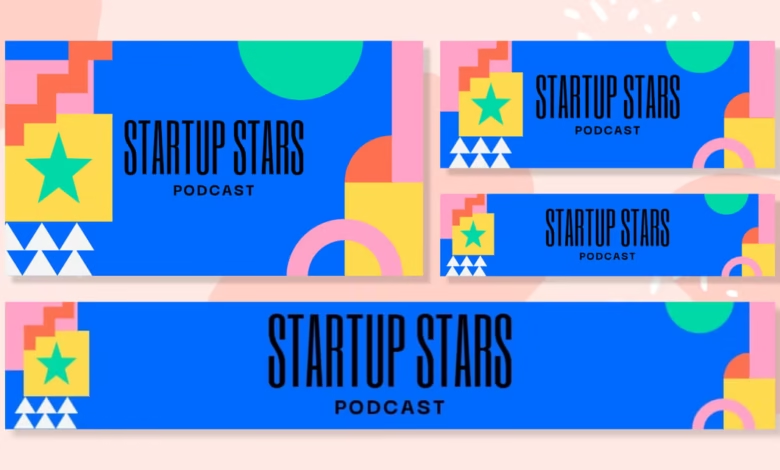
Banners rarely live in just one spot. The same campaign might need a homepage hero, an X header, a YouTube banner, a printed sign for a trade show, and an email graphic. Each of these has a different aspect ratio, and historically that meant designing five different files. A modern banner service collapses that work with a one-click resize feature that takes your existing design and reshapes it for whatever destination you choose, often through preset platform sizes or custom dimensions you punch in yourself.
Quick edits are the second half of that equation. Once your banner is live, you may need to swap a date, change a price, update a name, or refresh a photo. With the right editor, those tweaks take seconds rather than minutes, and you do not have to be near a desktop computer to do them. That speed is what separates a banner workflow that actually saves time from one that just looks fast in a demo video.
There is also the question of consistency. When you resize a banner manually across five formats, small differences creep in. The headline shifts a couple of pixels. The colors look slightly off. A built-in resize feature keeps every version visually aligned, which makes your campaign look more put together when someone scrolls past it on three different platforms in the same day.
Ten Tips for Designing and Resizing Banners Without the Headaches
Below are practical tips for moving fast while keeping your banners looking polished and on-brand.
- Start with a template that matches your destination. The fastest way to skip the blank-page panic is to pick a template already sized for the platform you have in mind. Most banner services group their templates by category, including web, social media, event, retail, school, and print. Choose one that already feels close to the look you want, and you are halfway done before you have made a single edit.
- Set up a brand kit before you do anything else. If you create banners often, even occasionally, save your colors, fonts, and logo into a brand kit. A good banner editor will let you upload these assets once and then apply them across every project with a click or two. This keeps your work looking consistent and saves you from hunting down hex codes every time you start a new file.
- Use a banner creator that handles the heavy lifting. For people who want a simple starting point, the Adobe Express banner creator gives you thousands of editable templates, drag-and-drop placement for photos and text, and a built-in resize tool that reshapes your design for any platform or print dimension. Open the page, pick a template that fits the vibe of your project, replace the text and images with your own, then adjust colors to match your brand. The whole process can take less than ten minutes, and there is no design background required to make something that looks polished.
- Resize instead of restarting. When you need the same banner in multiple sizes, look for a resize button that copies your design into a new aspect ratio rather than forcing you to rebuild it. A good resize tool will keep your typography hierarchy intact, scale your photos sensibly, and let you nudge anything that ended up out of place. This single feature can turn a half-day project into a half-hour project.
- Let AI handle the first draft. Generative AI features can speed up the early stages of design, especially if you are stuck for ideas. A text-to-template prompt can give you a custom layout in seconds. A text-to-image prompt can fill in a background image you do not have a stock photo for. Use these as starting points, then refine the details by hand so the result still feels intentional and on-brand.
- Keep the typography simple. A banner usually has under three seconds to communicate its message, so resist the urge to use four different fonts or tiny body copy. Pick one display font for your headline and one clean font for any supporting text. Most banner editors include curated font pairings, so you do not have to guess what looks good together.
- Pull from the built-in stock library. If your own photos do not feel right, or you do not have time to schedule a shoot, the stock library inside your banner editor is the fastest substitute. Search by mood, color, or subject, and you will usually find something usable in the first page of results. Royalty-free assets bundled into the editor save you a separate trip to a paid stock site.
- Make small fixes from your phone. Last-minute changes happen, especially when an event date shifts or a typo sneaks past everyone. Choose a banner service with a mobile app or browser version so you can update a project from your phone without opening a laptop. Cloud sync between devices means the edits you make on the train show up on your desktop later.
- Save and reuse your finished banners. Once you have a banner you like, turn it into your own template. The next time you run a similar campaign, duplicate the file, swap in fresh dates and copy, and ship it in minutes. This is how small marketing teams keep up with weekly content without burning out.
- Pick the right export format on the way out. A banner saved as a PNG looks great on a website but will be too low resolution for a printed banner at a conference. A PDF is a safe bet for anything heading to a print shop. JPG keeps file sizes down for ad placements that have strict limits. Most banner editors give you all of these options when you click download.
A Five-Minute Workflow That Actually Works
Most people do not need a fancy process. They need a path from idea to finished banner that does not require asking a friend who is good at Photoshop. A simple workflow that works inside almost any modern banner editor looks like this. Open the editor and search for a template that matches your platform. Replace the placeholder text with your message. Drop in your own photo or pick one from the built-in library. Apply your brand colors. Click resize and pick the next size you need. Download the file in the format your destination requires. That is it.
This workflow assumes nothing about your design experience. The editor handles alignment, spacing, image quality, and resizing math behind the scenes. Your job is to bring the message and the visuals you want to feature, and the tool takes care of making them look professional. The more often you do this, the faster it becomes, until producing a new banner is a fifteen-minute task instead of a half-day project.
The other quiet advantage of a workflow this short is that you stop dreading banner work. Tasks you can finish in fifteen minutes get done. Tasks that feel like they will take an entire afternoon get pushed off until the deadline is screaming at you. Picking a tool that compresses the timeline is, in practice, what makes the difference between content that actually goes out and content that lingers on a to-do list.
Frequently Asked Questions
Do I need any design experience to make a banner that looks professional?
Not at all. The whole point of a modern banner design service is to remove the need for design training. Templates handle layout decisions, preset color palettes handle aesthetics, and built-in tools handle resizing and exporting. If you can drag a file into a folder, type into a text box, and click a download button, you can make a banner that looks like a designer made it. The first one might take you twenty minutes as you get familiar with the editor. By the third or fourth, you will be cranking them out in under ten. The learning curve is genuinely shallow because these tools are designed for everyday people, not for design professionals who already have years of training behind them.
What banner sizes do I need for different platforms and print?
The exact pixel dimensions vary by destination, and they shift over time as platforms update their layouts. The most common ones to know are roughly 1500 by 500 pixels for X (formerly Twitter), 2560 by 1440 for YouTube channel art, 851 by 315 for Facebook covers, 1584 by 396 for LinkedIn personal banners, and 1200 by 1000 for general web banners. For printed banners, work in inches at 72 by 36 inches for a standard horizontal sign, but always confirm with your print provider. Most banner editors include all of these as preset options, so you can pick the platform name from a list rather than memorizing numbers. To keep your final files organized across projects, consider saving them to a free cloud storage service like Google Drive so you can grab them again later from any device.
How do I keep my banners consistent with the rest of my brand?
Consistency comes down to using the same colors, fonts, and logo every time. The fastest way to do that is to upload your logo and color hex codes into your editor’s brand kit, which most services let you do for free or as part of a paid plan. If you do not yet have a defined brand, start by picking two or three colors and one or two fonts, then use them across every banner you make. Stick with those choices for at least a few months before you change anything. You can always evolve later, but consistency in the early days is what makes your work look intentional rather than scattered. Treat your brand kit as a single source of truth, and update it the moment something changes so future banners stay aligned automatically.
Can I edit my banner after I have already resized it?
Yes. A good banner editor stores every version of your project in your account, so you can come back, tweak text, swap an image, change a date, and re-export at any time. The resized versions of a single design are usually saved together, which means if you change the headline on one, you can quickly apply that update across the others. Just keep in mind that automatic resizing is not always perfect for very different aspect ratios. A wide horizontal banner reshaped into a tall vertical format may need a few manual adjustments to make sure the most important text stays in the visible area. Preview each version before you publish, and you will catch those small issues in seconds.
What file format should I use when I download my banner?
For online banners on websites, social media, and email, PNG is the most flexible. It supports transparent backgrounds and looks crisp on any screen. JPG works well when you have a tight file size budget, but you lose the option of transparency. For print, PDF is the standard. It preserves resolution and works with every commercial printer. If your banner includes any animation, the editor will export it as an MP4 or GIF instead. When in doubt, PNG for screen and PDF for print is a safe rule of thumb that will cover almost every situation you run into.
Bringing It All Together
You do not need a design degree, an expensive software subscription, or an extra week to produce a banner that looks like it came from an agency. What you need is a banner design service with a comprehensive editor, an honest set of templates, fast resizing, and quick editing tools that work whether you are at your desk or on the move. The right tool gives you a single workspace for everything, from picking a template to exporting print-ready files, and lets you reuse your work across every platform without rebuilding it each time.
If you have been putting off banner projects because they felt like they would take all day, the speed of modern editors is the part that should change your mind. Pick a template, swap in your message, apply your brand, resize for each destination, and download. That is the whole job. With a little practice, you will spend less time fighting the tool and more time on the parts that actually matter, like the message you want your banner to deliver.
READ ALSO: Is Your Ad Budget Leaking? Ways to Track Local ROI